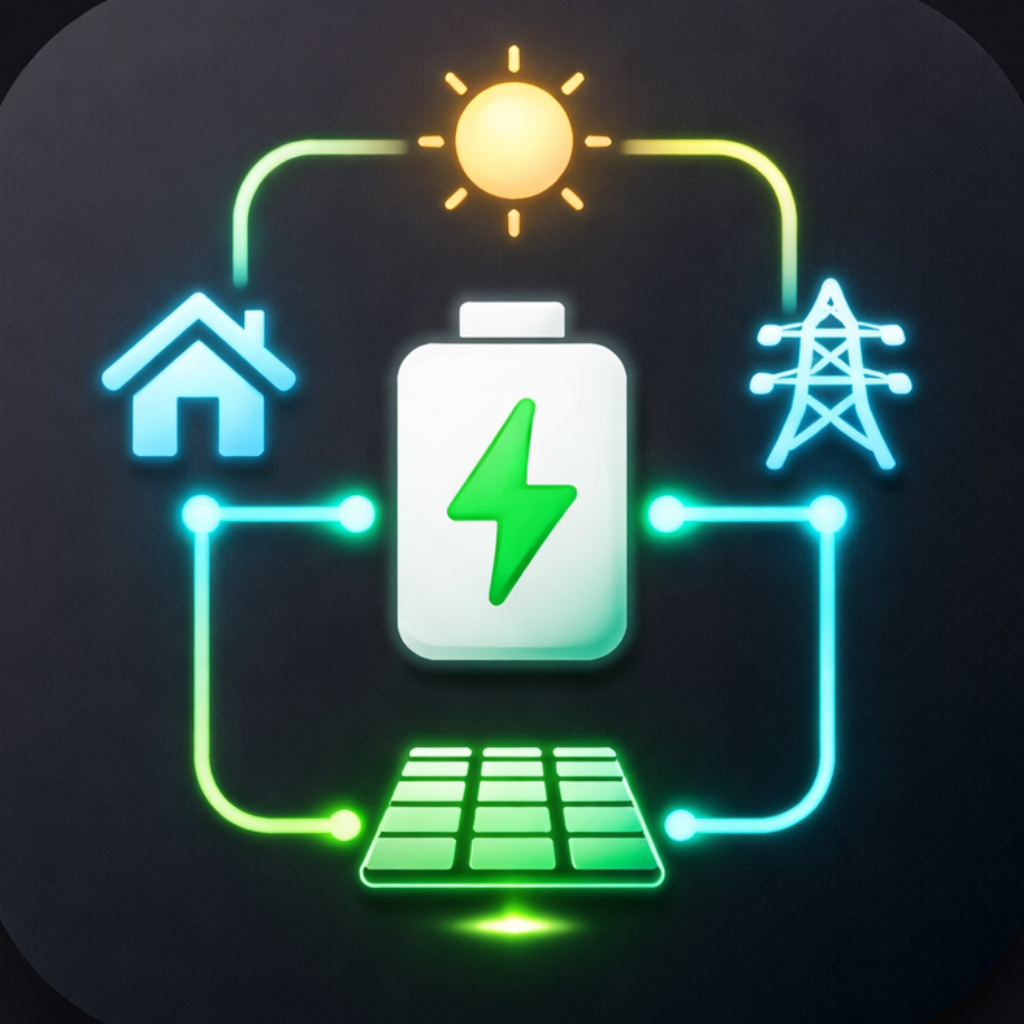
Live Power Flow
The Dashboard shows an animated diagram of how power is moving through your system right now, updated on your configured refresh interval.
What’s shown
Section titled “What’s shown”| Node | Description |
|---|---|
| Solar | Current solar generation in W or kW |
| Battery | State of charge (%) and charge/discharge rate |
| Home | Current home consumption |
| Grid | Import or export and current power |
| EV Charger | Charge rate if an EV charger is connected |
Animated arrows on the flow lines indicate direction. When Power-based Speed is enabled in Settings, the arrows animate faster at higher power levels.
Interactive elements
Section titled “Interactive elements”Battery orb — tapping the battery circle on the flow diagram opens a quick-control panel where you can adjust Charge and Discharge Power Limits without leaving the dashboard. Only available on inverters that support power limits.
EV Charger orb — if a linked EV charger appears in the flow diagram, tapping its circle switches directly to the charger dashboard. The four digits shown inside the orb are the last four digits of the charger’s serial number, making it easy to identify which charger is which when you have more than one.
Today’s totals
Section titled “Today’s totals”Below the flow diagram, running totals for the current day are shown:
- Solar generated
- Grid imported
- Grid exported
- Battery charged
- Battery discharged
These reset at midnight.
Status bar
Section titled “Status bar”A thin bar just below the app title shows when data was last refreshed, colour-coded for freshness:
| Colour | Meaning |
|---|---|
| Green | Fresh |
| Yellow | Slightly stale |
| Orange | Getting old |
| Red | No recent data |
Quick actions (Pro)
Section titled “Quick actions (Pro)”Four buttons give one-tap battery control:
- Charge Now — forces the battery to charge at maximum rate until the reserve is reached
- Discharge Now — forces the battery to discharge until the reserve floor
- Pause — holds the battery at its current state of charge
- A fourth button appears when a quick action is active, returning the inverter to normal operation
Linked EV Charger
Section titled “Linked EV Charger”If you have an EV charger saved and associated with your inverter, a summary card appears on the dashboard showing charger status and current draw. Tap it to switch to the charger dashboard.
Multiple devices
Section titled “Multiple devices”If you have more than one device (e.g. a Gateway with multiple All-In-One units), use the tabs at the top of the screen to switch between them.