Cross-Platform Sharing
If you’ve bought GivLocal Pro or Installer on one platform, you can unlock the same tier on your other device (iOS or Android) without paying again. There’s no account or sign-in - a short code links the two devices directly.
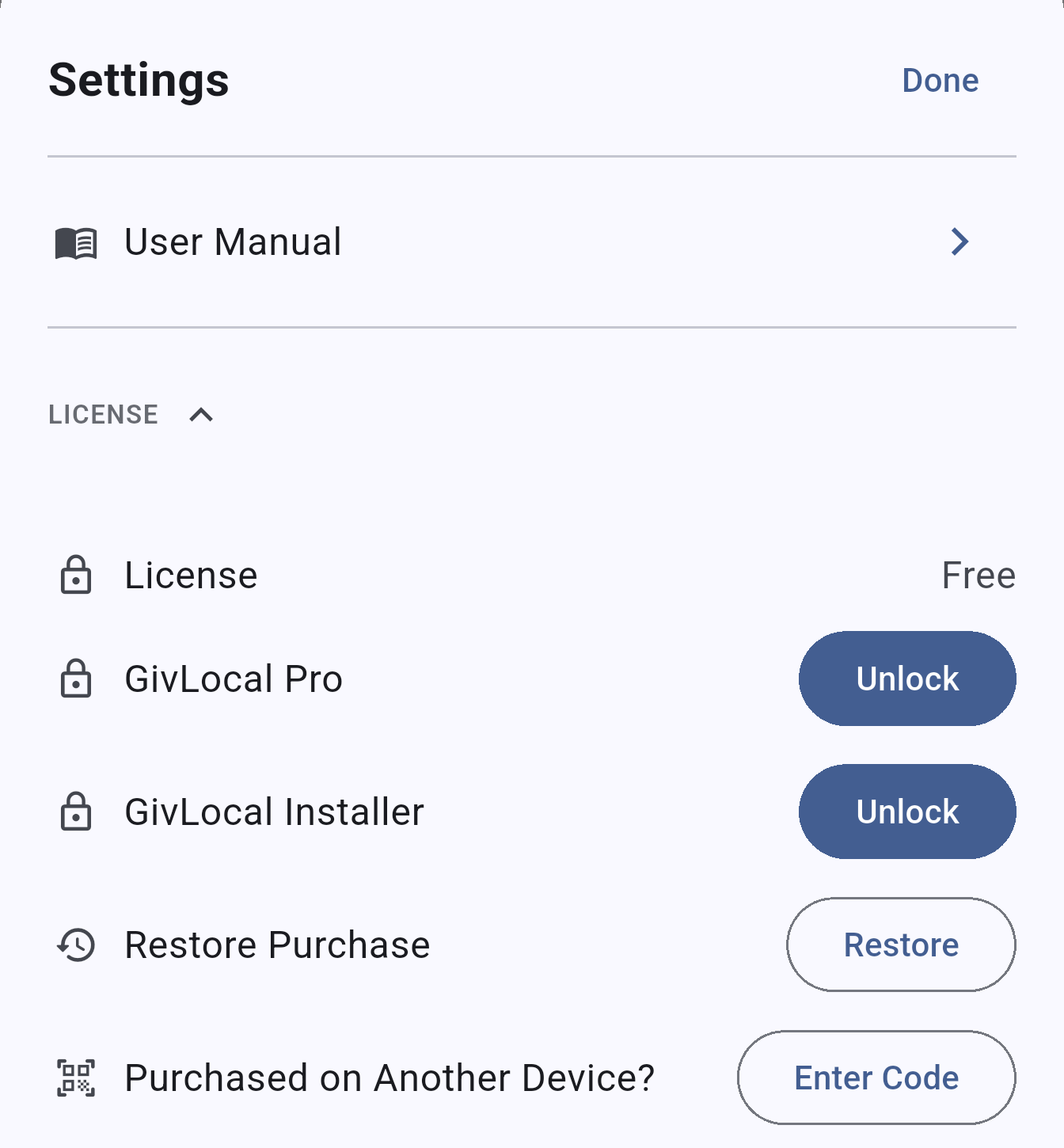
The License section in Settings shows your current tier and the actions available for it:
Setting up the device that made the purchase
Section titled “Setting up the device that made the purchase”- Open Settings → License
- Tap Share Code next to Activate on Another Device
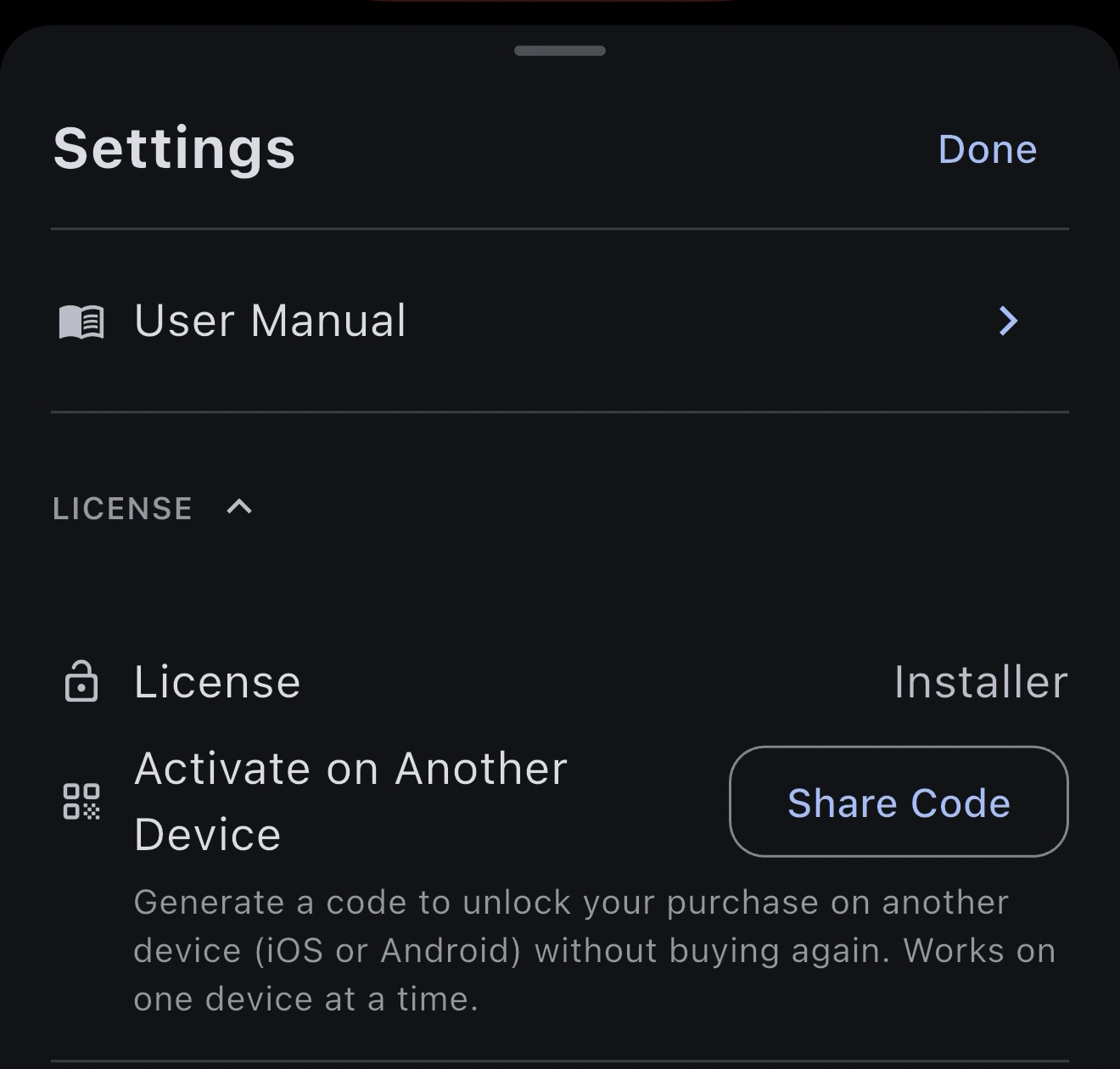
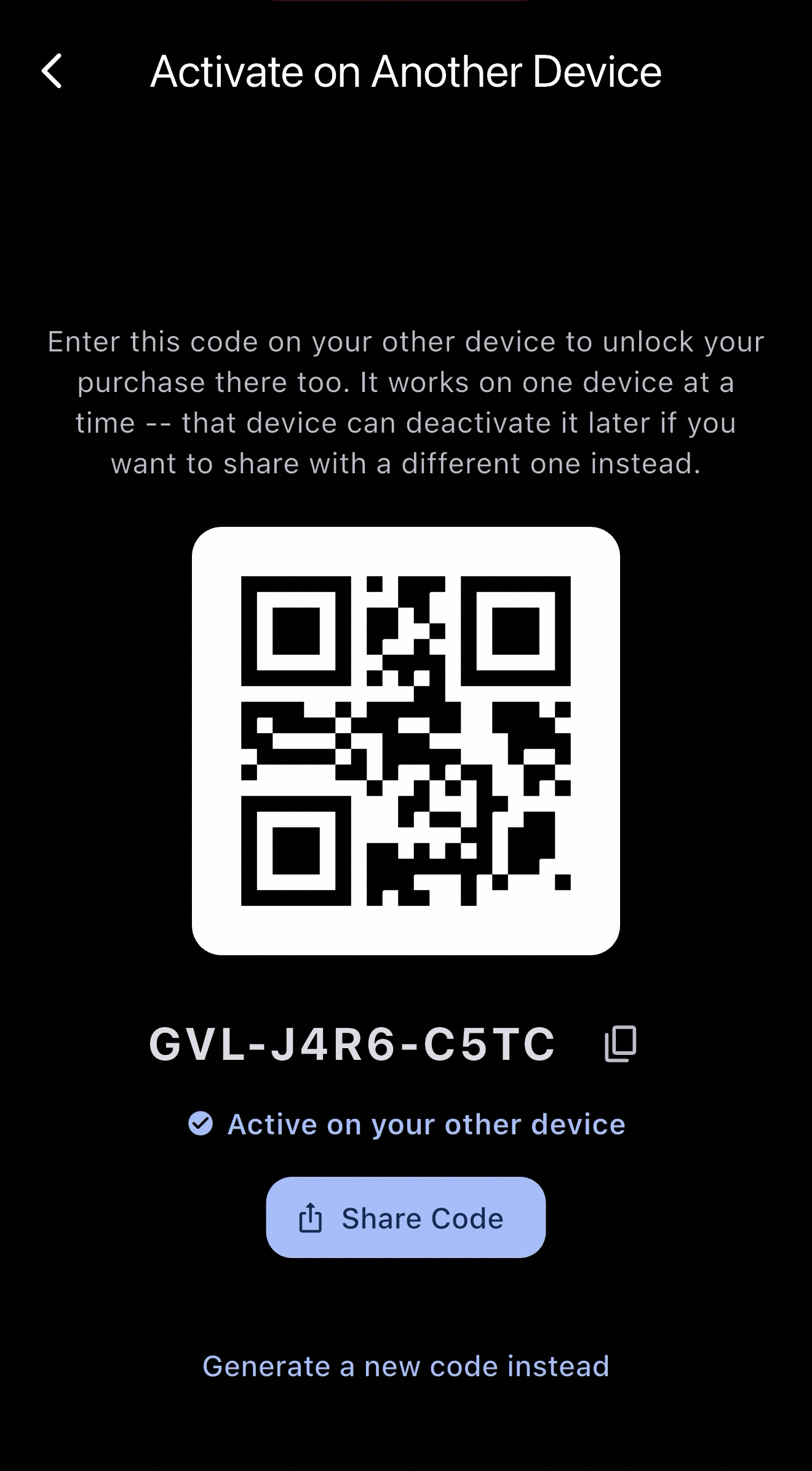
- GivLocal verifies your purchase and generates a one-time code, shown as text and a QR code
- Share it with your other device - use the Share button, copy the code, or let the other device scan the QR code
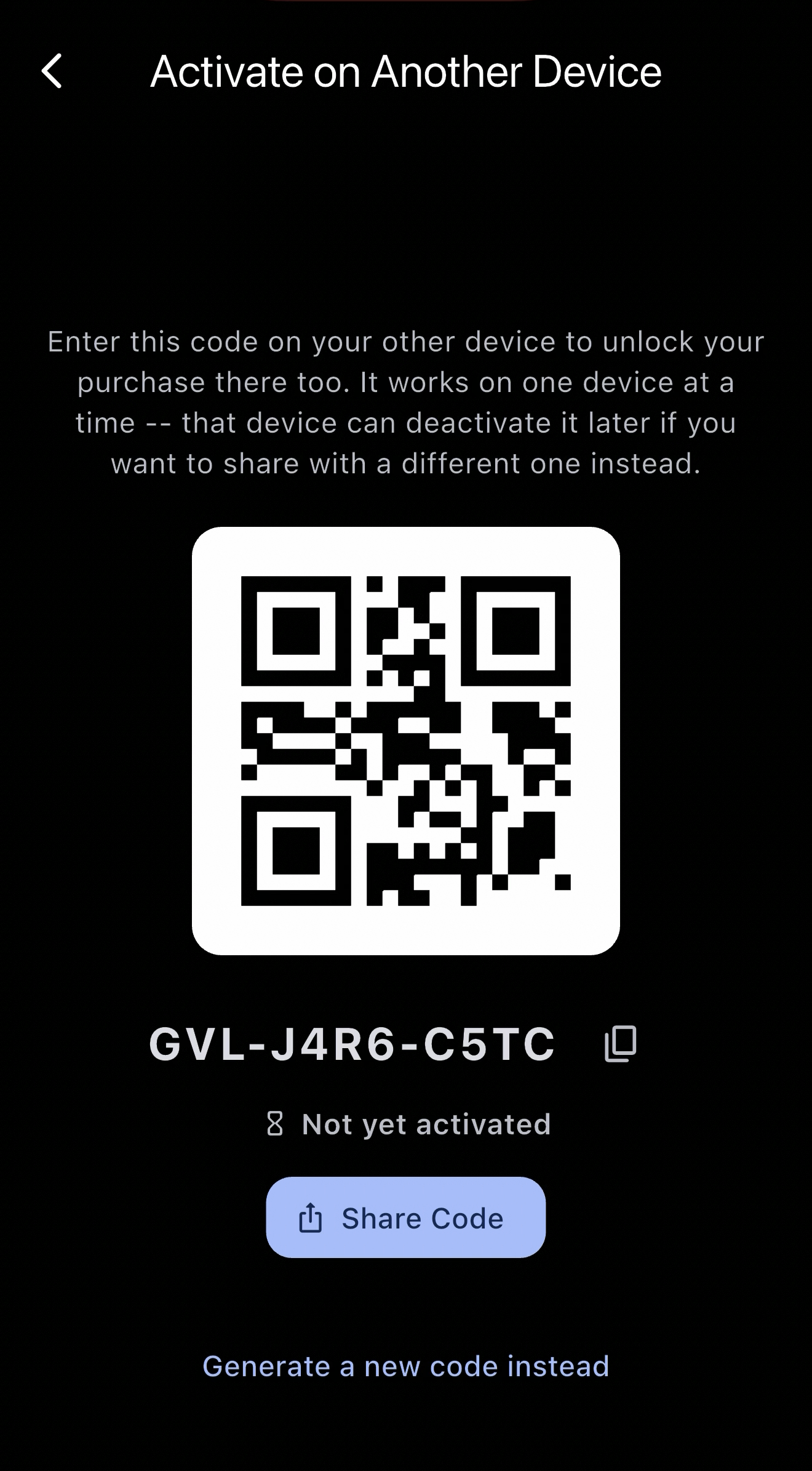
While this screen is open it shows whether the code has been used yet, and closes automatically as soon as your other device activates it:
Setting up the device without a licence
Section titled “Setting up the device without a licence”- Open Settings → License
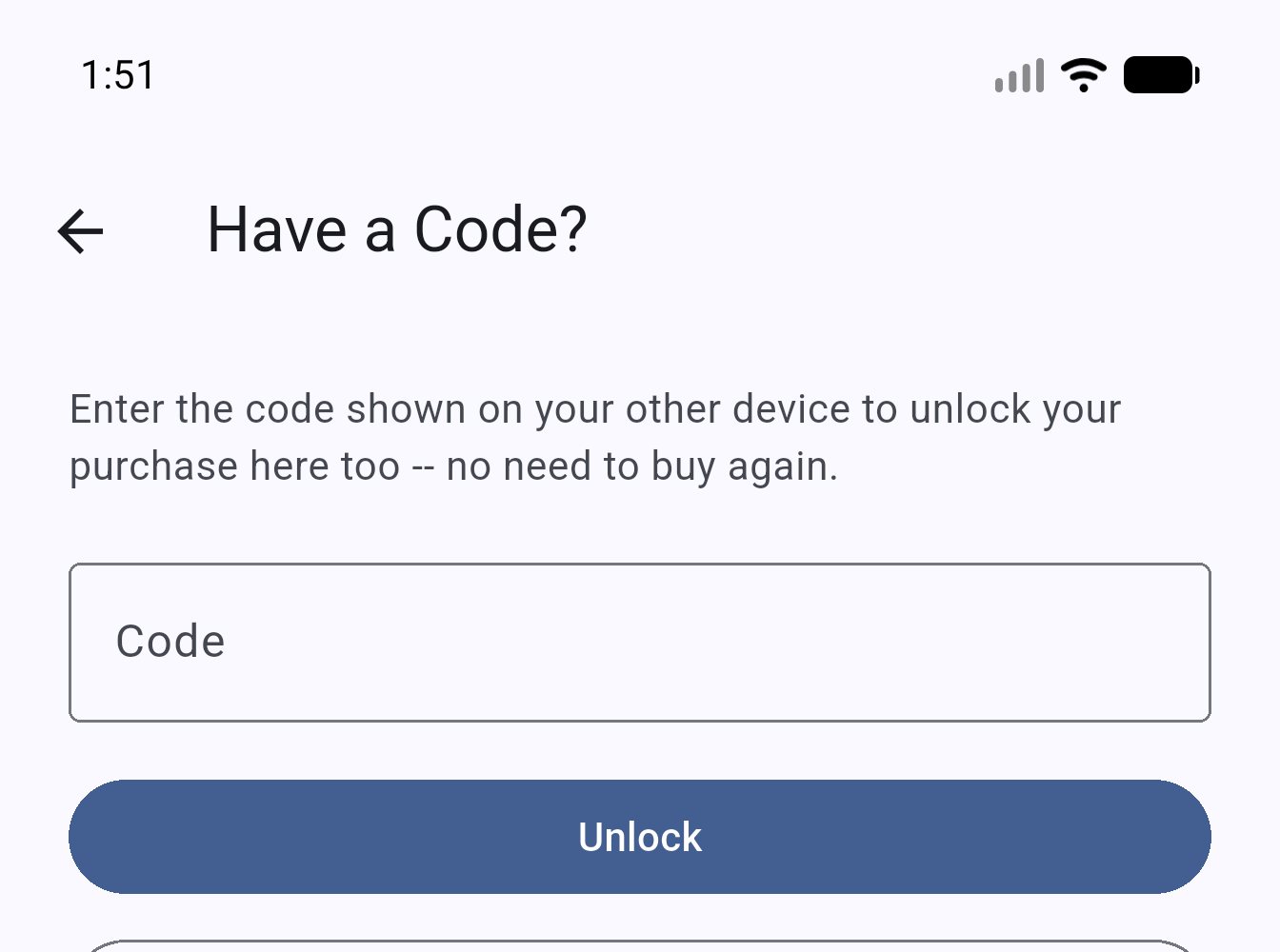
- Tap Enter Code next to Purchased on Another Device?
- Type in the code - dashes are optional - or tap Scan QR Code and point at the other device’s screen
- Once accepted, Pro/Installer unlocks immediately on this device
Restrictions
Section titled “Restrictions”- One device at a time. A code can only be activated on a single device. While it’s active, the donor device can’t hand out a new code to a different device without first deactivating the current one.
- Occasional connectivity required. The shared entitlement checks in with GivLocal’s license server from time to time. It keeps working for a while if the device is offline, but if it can’t check in for an extended period the shared unlock will lapse until it reconnects - everything else in GivLocal continues to work normally regardless of connectivity.
Deactivating a licence
Section titled “Deactivating a licence”Use this to move your entitlement to a different device, or to replace one that’s lost, broken, or being retired - deactivation works from either side.
- From the device that received the code: open Settings → License and tap Deactivate next to Linked Device. This immediately drops the shared entitlement on that device and frees the original device to share with a new one.
- From the device that made the purchase: open Settings → License, tap Share Code, then tap Generate a new code instead. Confirm the warning - this immediately invalidates the previous code and disconnects whichever device was using it, which is useful if that device is lost or broken and you can’t deactivate it yourself.