Customising the Dashboard
The Dashboard is built from individual widgets that you can add, remove, and reorder to suit what you care about most.
Entering edit mode
Section titled “Entering edit mode”Long-press anywhere on the Dashboard to enter edit mode. A panel appears at the top showing Available widgets - a palette of everything not currently on your Dashboard - along with Clear, Reset, and Done actions.
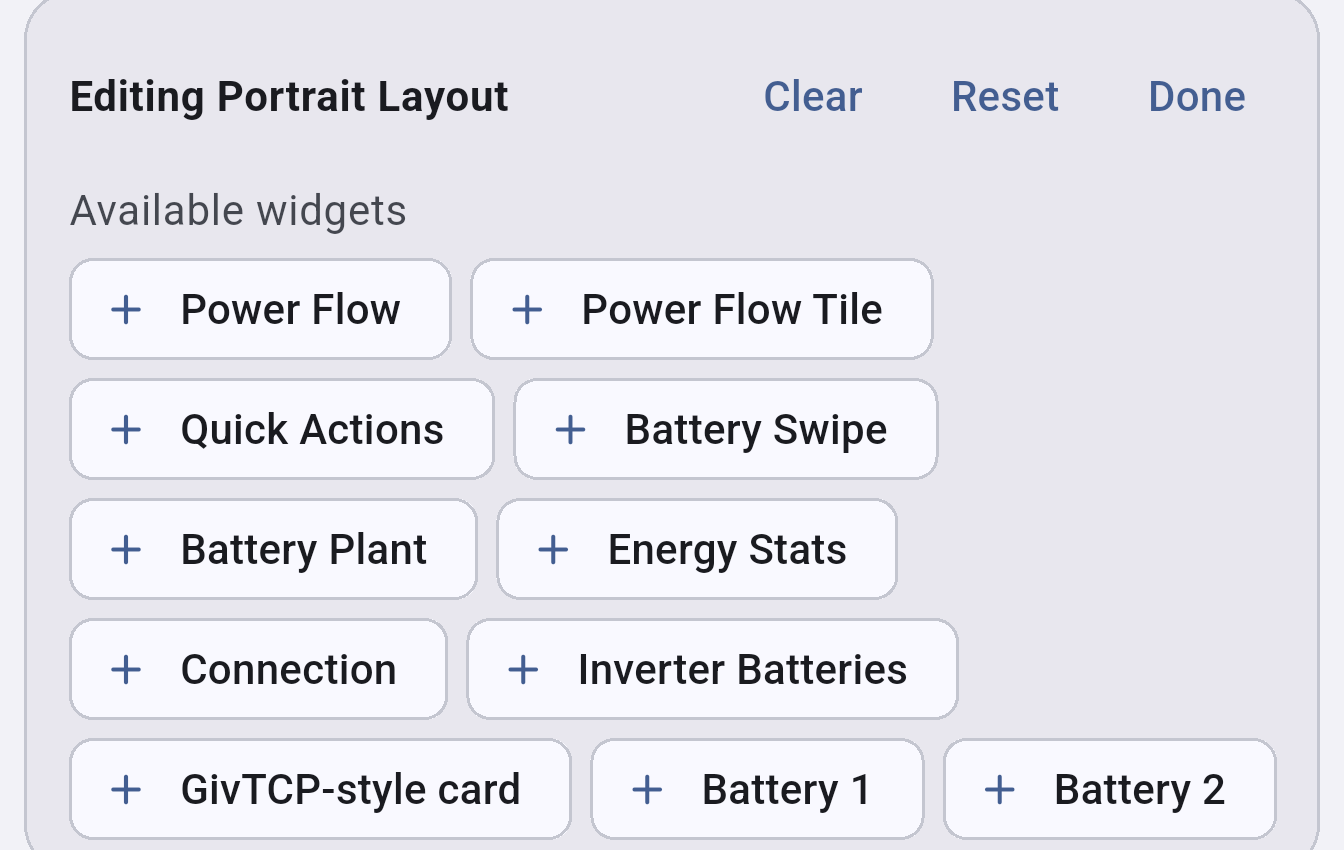
Tap the + on any widget chip to add it to your Dashboard.
Available widgets
Section titled “Available widgets”| Widget | Description |
|---|---|
| Power Flow | The full animated power flow diagram |
| Power Flow Tile | A compact tile version of the power flow diagram |
| Quick Actions | Charge Now / Discharge Now / Pause buttons |
| Battery Swipe | Swipeable battery summary card |
| Battery Plant | Combined battery plant summary |
| Inverter Batteries | Per-inverter battery breakdown |
| Chargers | EV charger status tiles |
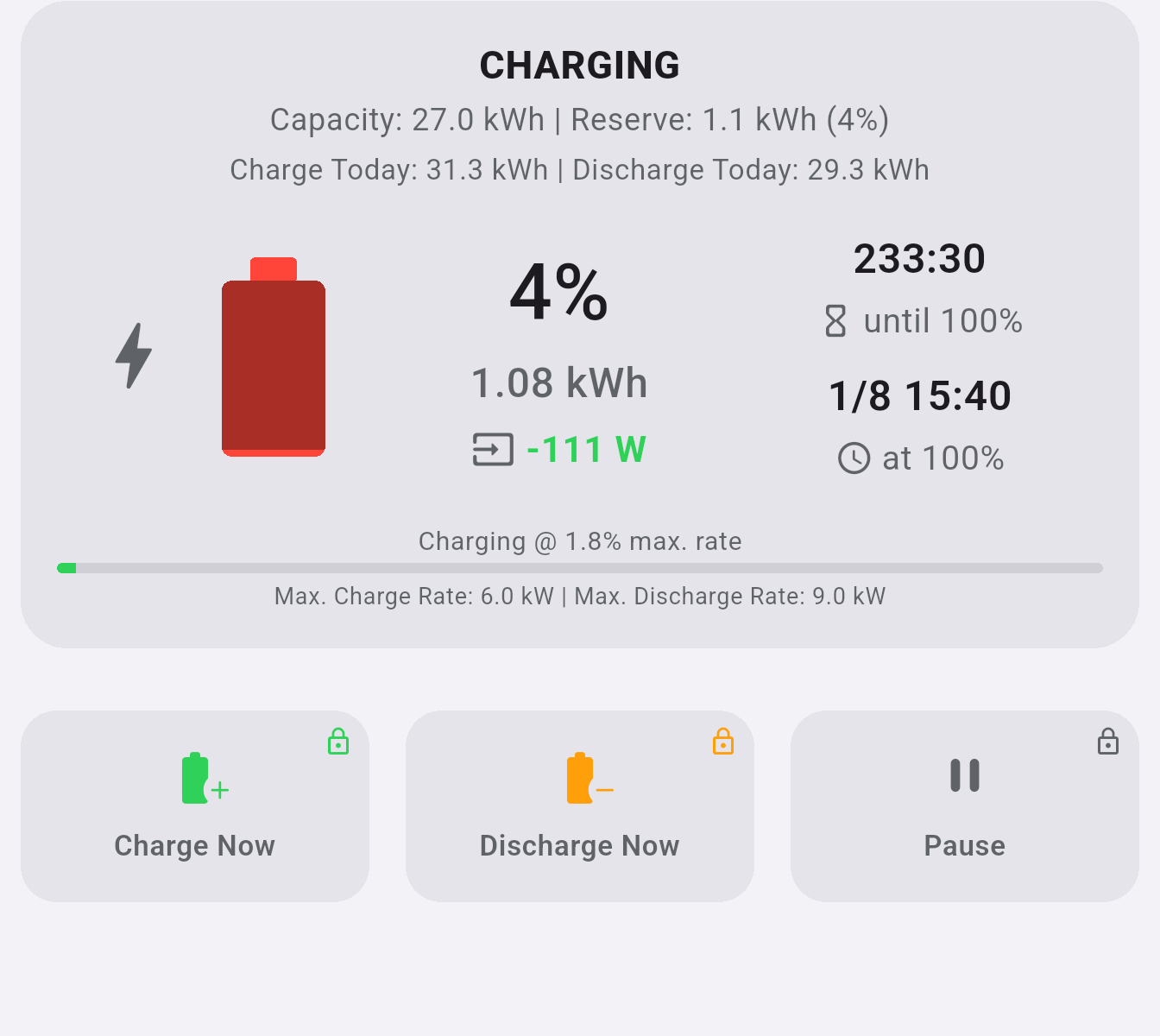
| GivTCP-style card | Battery card in the style used by GivTCP, showing capacity, charge/discharge totals, and timing estimates |
| Energy Stats | Daily generation, import, export, and consumption totals |
| Connection | Connection status summary |
If you have more than one battery, an individual widget is also offered for each one (e.g. Battery 1, Battery 2).
Removing and reordering
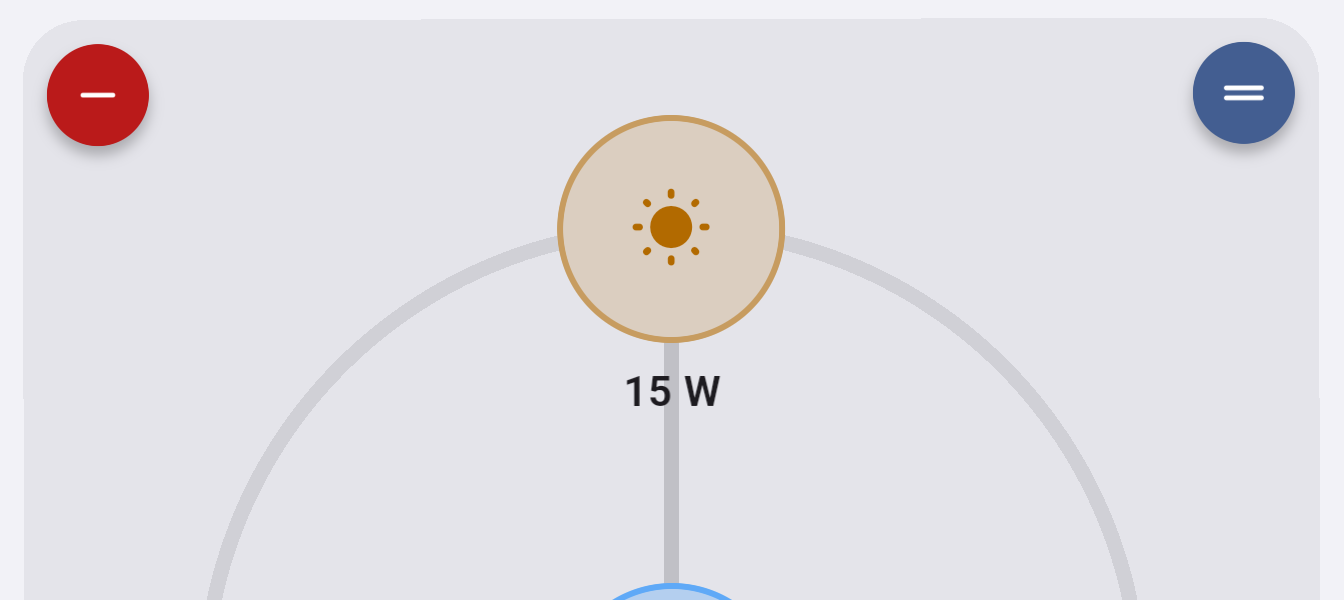
Section titled “Removing and reordering”While editing, each widget already on your Dashboard shows two controls:
- A red − in the top-left corner - removes that widget
- A blue drag handle in the top-right corner - press and drag to move the widget to a new position
Clear, Reset, and Done
Section titled “Clear, Reset, and Done”| Action | Effect |
|---|---|
| Clear | Removes every widget from the layout you’re currently editing |
| Reset | Restores the default widget set for the layout you’re currently editing |
| Done | Exits edit mode |
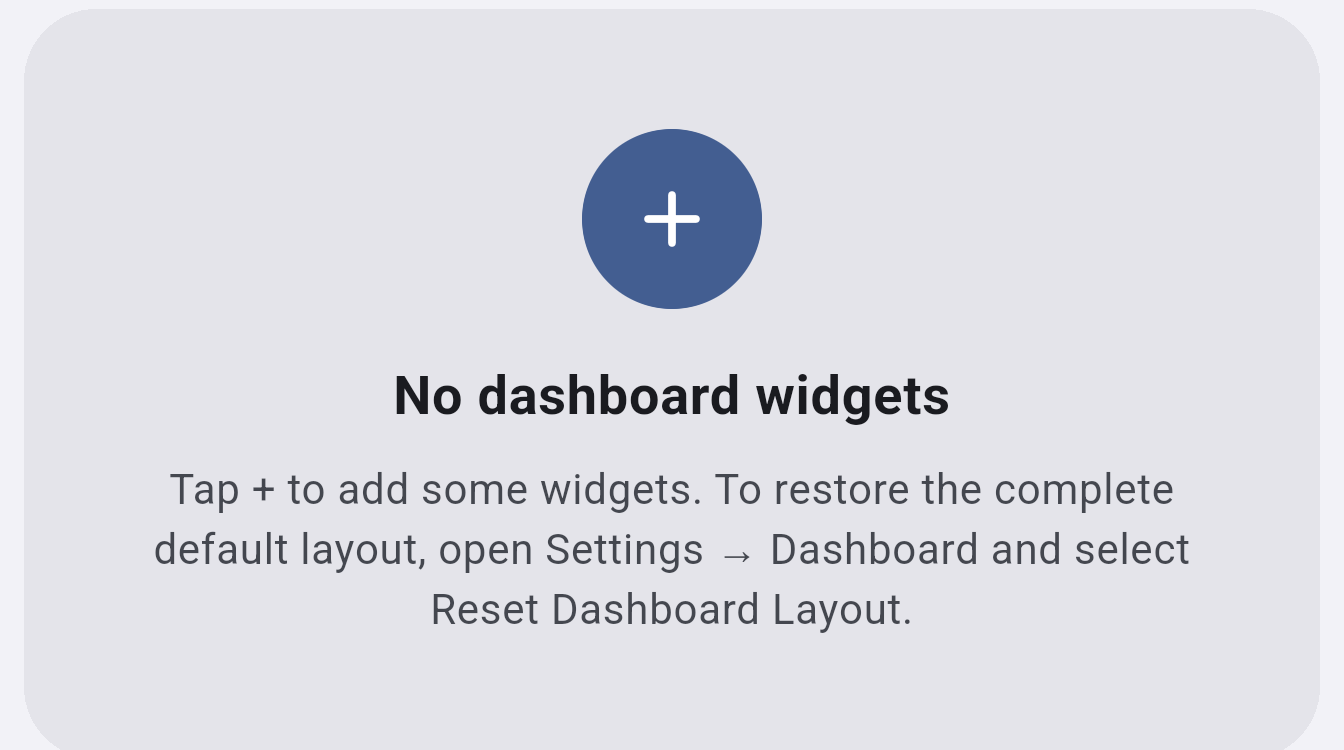
If you clear everything, the Dashboard shows an empty state with a shortcut back into edit mode:
Example
Section titled “Example”A Dashboard customised to show only the GivTCP-style battery card and Quick Actions, with the Power Flow widget removed: